
Resetting toner levels on a Brother MFC-L8850CDW colour laser printer
THE SYMPTOM
THE HISTORY
I’m a big fan of Brother laser printers. I have a monochrome MFC-8840D that’s been pretty much trouble-free for probably 25 years, and a colour MFC-L8850CDW that’s been equally great, but only for maybe 15 years. Printed Christmas cards, travel agent invoices, documentation, and a mountain of band music over the years, all without complaint.
We’ve been having one issue with the MFC-L8850CDW though.
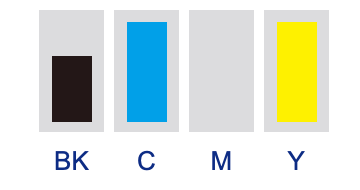
Like many lasers, it has four separate cartridges for Black, Cyan, Yellow and Magenta toner, and for quite a while, the printer has been complaining that the Magenta cartridge is empty even though Cyan and Yellow are maybe 90% full. I’d bought and installed them all at the same time a while ago, genuine legit Brother cartridges, but somehow the printer thinks the Magenta one is empty.
Tried everything. Disassembled printer, cleaned colourful toner everywhere, wiped everything down, and briefly considered buying another $120 magenta cartridge. (Expensive, sure, but they last a long time.)
Then, somehow, as a last gasp, I actually searched the Internet to see if anyone had experienced the same problem.
As unfortunately usual these days, a lot of the answers were 95% AI-generated slop, but I did find this site with the exact solution for my specific printer. Thank you, EasyInk Support! If I ever need a cartridge and I happen to be in New Zealand, you’ve got my business.
THE PROBLEM
Certain Brother lasers apparently lose track of how full the cartridges are. When you replace a cartridge, a counter is supposed to be reset, but sometimes, because who knows why, the printer fails to reset the count for one of the cartridges. Even after installing a new Magenta cartridge my printer thought it was out of Magenta.
I guess the reset didn’t happen, and for a while, our printer has claimed to be out of Magenta. (Fortunately, it still prints everything else.)
THE SOLUTION
All you have to do is press an INVISIBLE BUTTON for five seconds, and a secret Toner Reset menu appears. You can then choose your Magenta cartridge on the list, and the printer will now believe that it’s full of beautiful Magenta.
The front panel of this printer has a colour touch screen display, and also an array of buttons that are illuminated only when needed. You can’t see those buttons at all if they’re not lit up, but we need to touch one of them, which is a small challenge if we can’t see where it is.
I made a recording of the process just so you can see what I mean by an invisible button.
These are the steps.
-
Figure out where the “*” button is. It’s behind a backlit numeric dial panel that normally only lights up if you’re sending a Fax, so touch the Fax button on the main screen, and take note of exactly where the “*” is, because it won’t be illuminated when you need to press it in a moment.
-
Open the front cover of the printer. The touch screen display says Close the front cover. Don’t. Leave that error panel on the screen.
-
Press and hold the magic “*” button for five seconds.
-
The touch screen now shows this Reset menu -
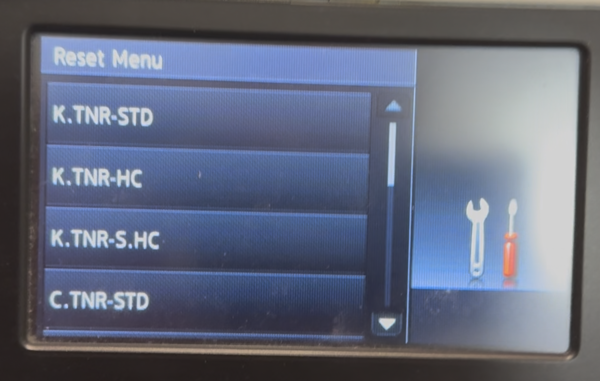
Those represent different cartridges. K is black, C is cyan, M is Magenta, Y is yellow. STD means a standard capacity cartridge, and HC is High Capacity.
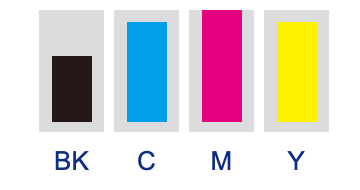
In my case I scrolled down to M.TNR-HC and tapped that button, and it asked for confirmation and - BOOM.
My printer now believes its Magenta cartridge is full again. Success! We can print in colour!
I hope this helps either me in the future, or someone else if you stumbled across this page.
reset codes for other Brother printers
Not all Brother printers work this way - I came across a site listing slightly different reset codes for other models (sadly, not including mine.)
Perhaps this list will help.